
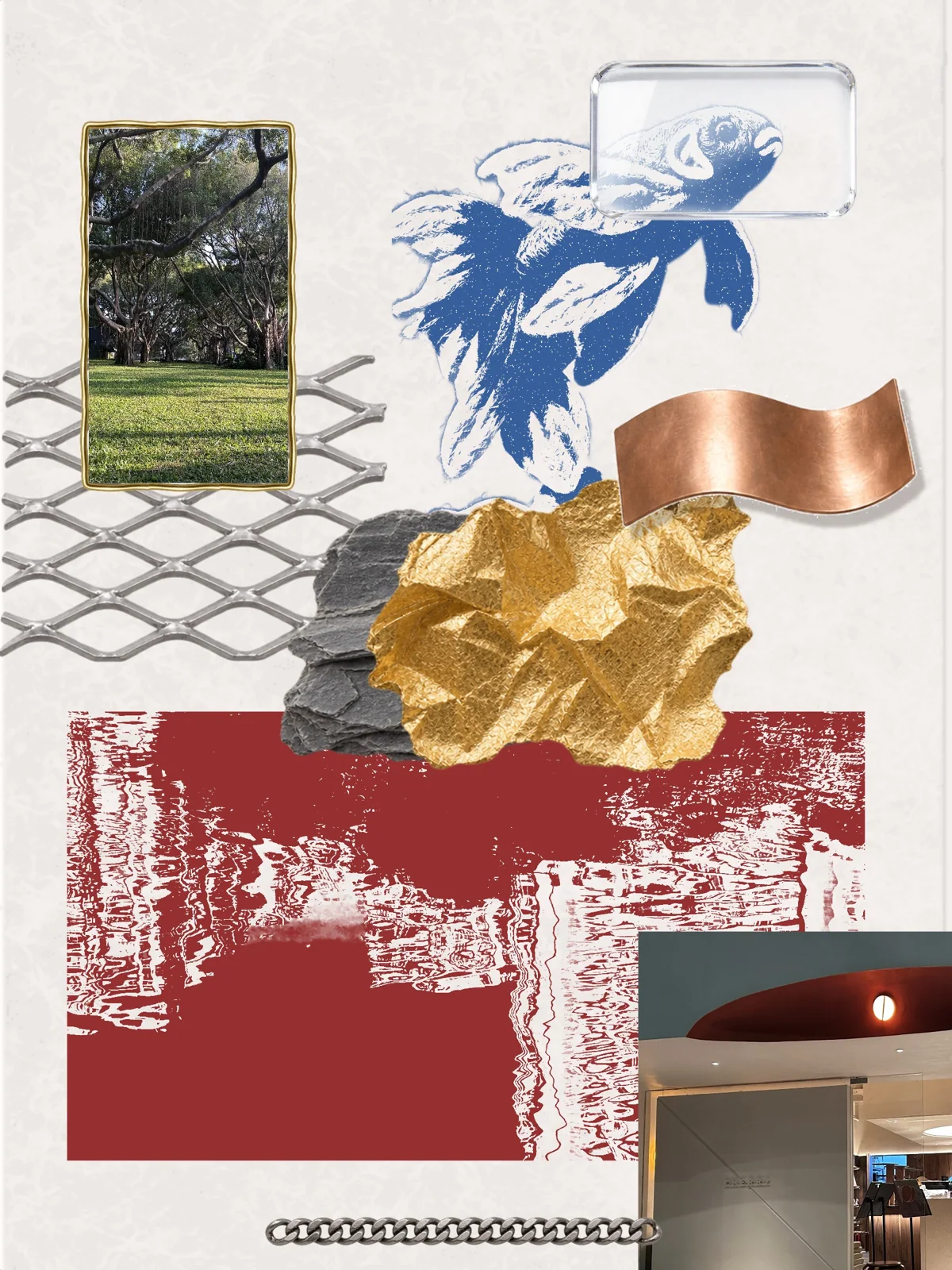
A collage can begin with one photo and grow one layer at a time. This digital mixed-media collage brings together photos, paper and print-like details; use the materials and images that suit your own idea.
1. Choose a starting point
Start with a photo or a blank canvas. You can also choose a template, replace its photos and adjust the details. The finished example above is inspiration; your layout can be entirely different.
2. Add your photos
Place the photos you want to use, then crop, resize and move them around the canvas. Leave room for other details, or let your images overlap.
3. Explore the materials
Tap Assets in the editor toolbar to open the library. The example below shows For you, Saved, Stickers and Materials, with View all for browsing more.
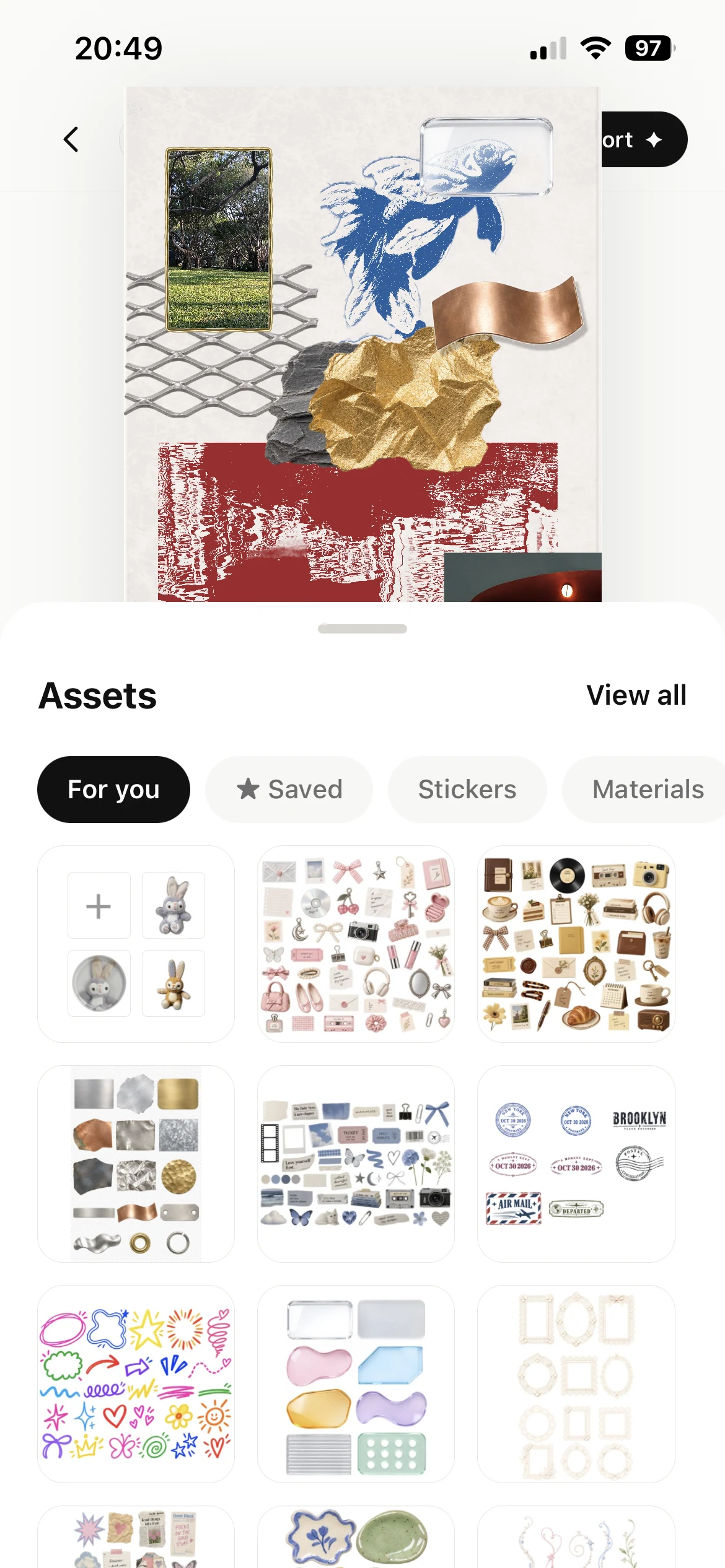
Choose a collection, then add a material to your canvas. For this kind of composition, try combining a paper-like background with contrasting details such as metal mesh, crumpled foil or a frame. You do not need to use every material in the example.
4. Arrange the composition
After adding a material, return to the canvas and adjust its size and position. Use the layer controls when you want it to sit in front of or behind another element. In the example, overlapping the metallic shapes, printed fish and photos gives the piece depth.
5. Add a finishing touch
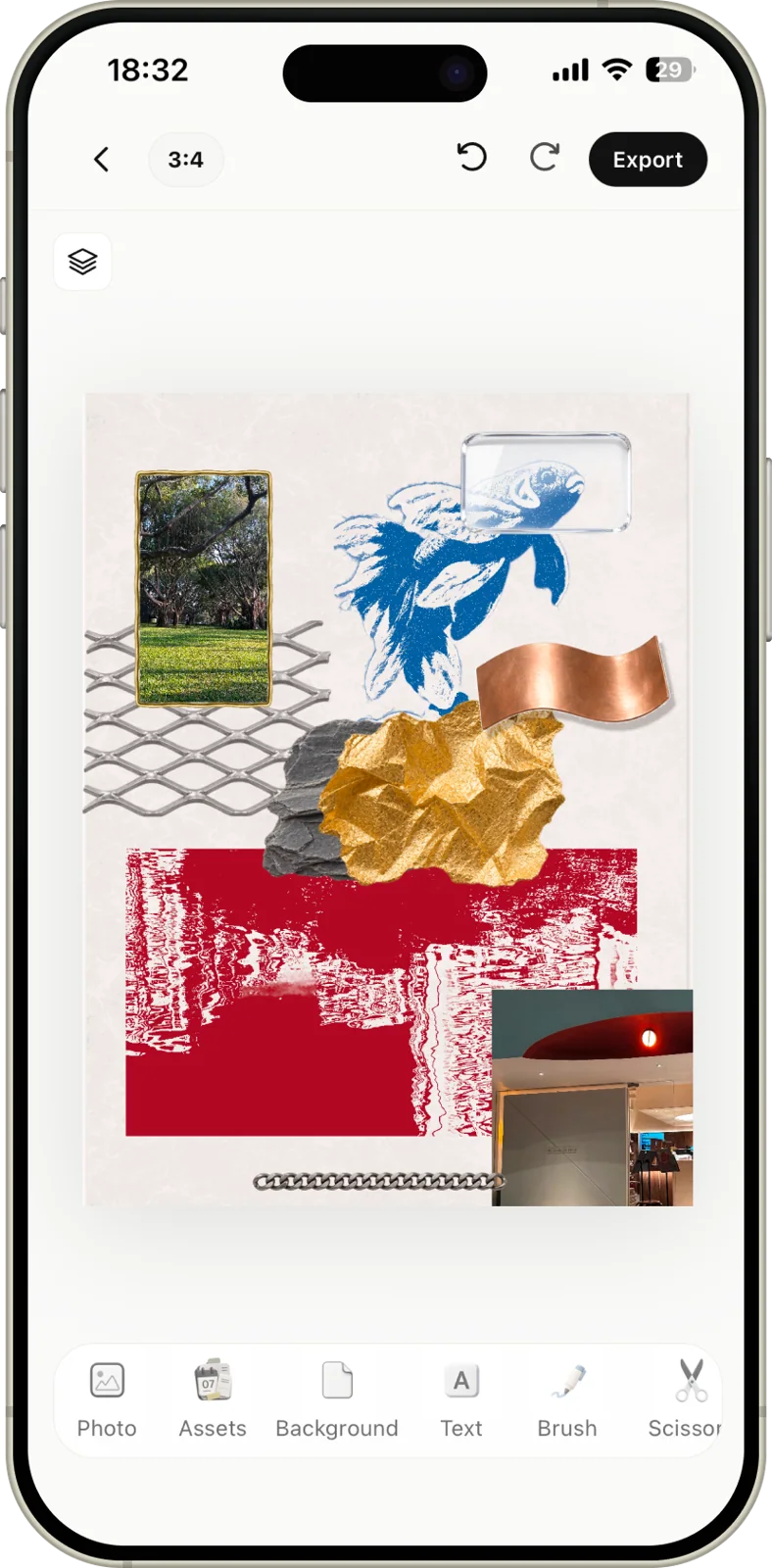
Try a title, a brush stroke or a decorative edge. Adjust and rearrange the elements until the balance feels right to you.
6. Export and keep creating
Export your finished design as an image to save or share. Editable projects stay on your device; cloud backup and cross-device syncing are not currently supported.
Standard watermark-free export is available for free. A design containing separately added Premium content generally requires active Premium to export; fixed Premium items included in a free template can be exported with that original template.