
There are two starting points: use Regular stickers to extract a photo subject and add an outline, or use AI creative stickers to transform an image into a styled material.
Make a regular sticker
1. Choose your photo and subject
Open the sticker-making tool and select a photo. In Regular stickers, choose a detected subject. Try another photo if the subject is not recognized as you expect.
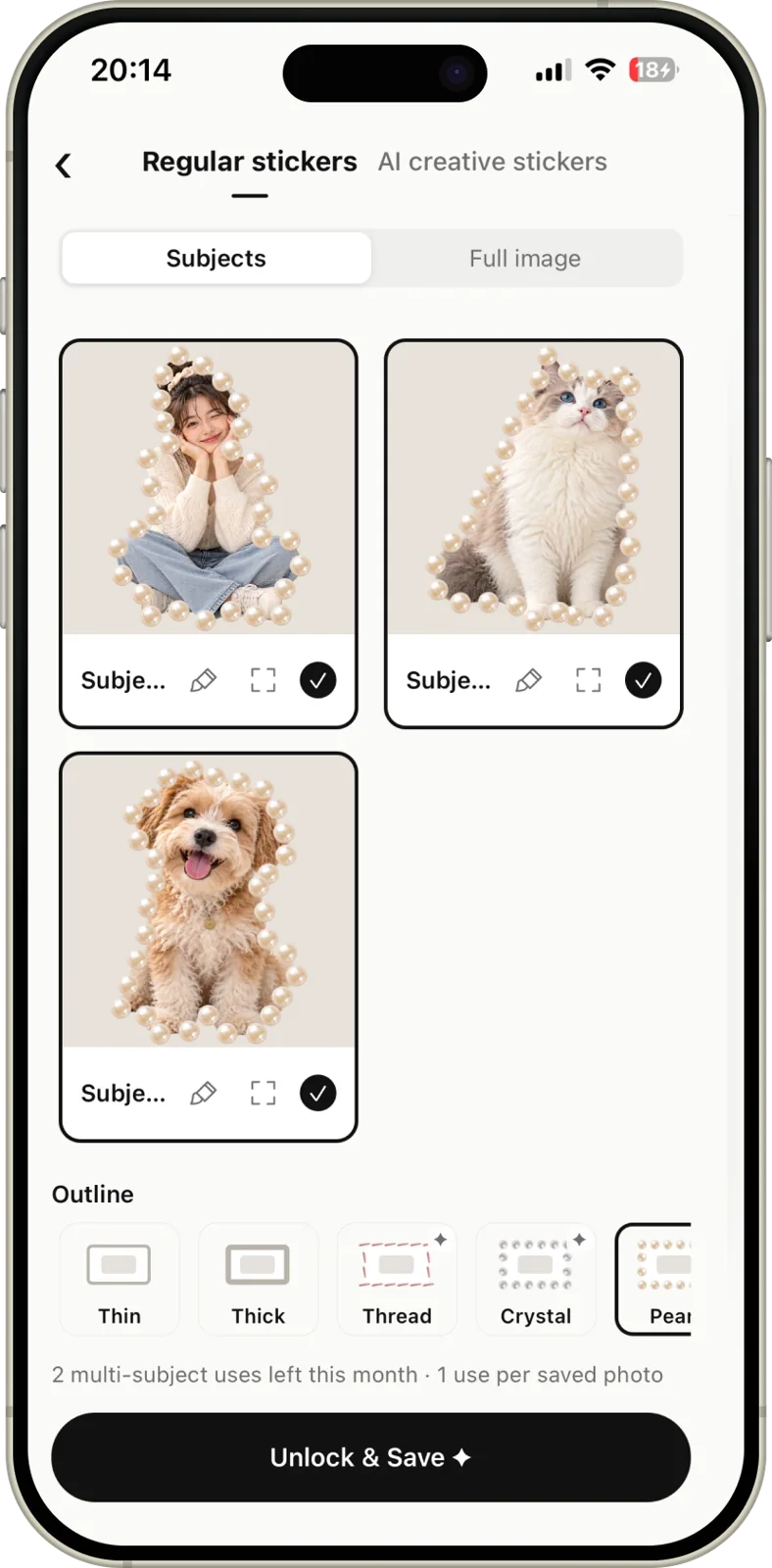
2. Choose an outline and save
Keep the subject without an outline or try an available outline, then save it to your personal materials. Single-subject stickers with no outline or a free outline are free; saving with a Premium outline requires active Premium.
Multi-subject extraction has a separate allowance: editor splitting and multi-subject sticker making share five free successful uses per UTC calendar month. Premium includes unlimited uses. One source photo's successful application or save counts once, regardless of the number of selected subjects.
Explore AI creative stickers
For a closer look at one style, follow how to create an embroidery-style photo.
1. Select the input and style
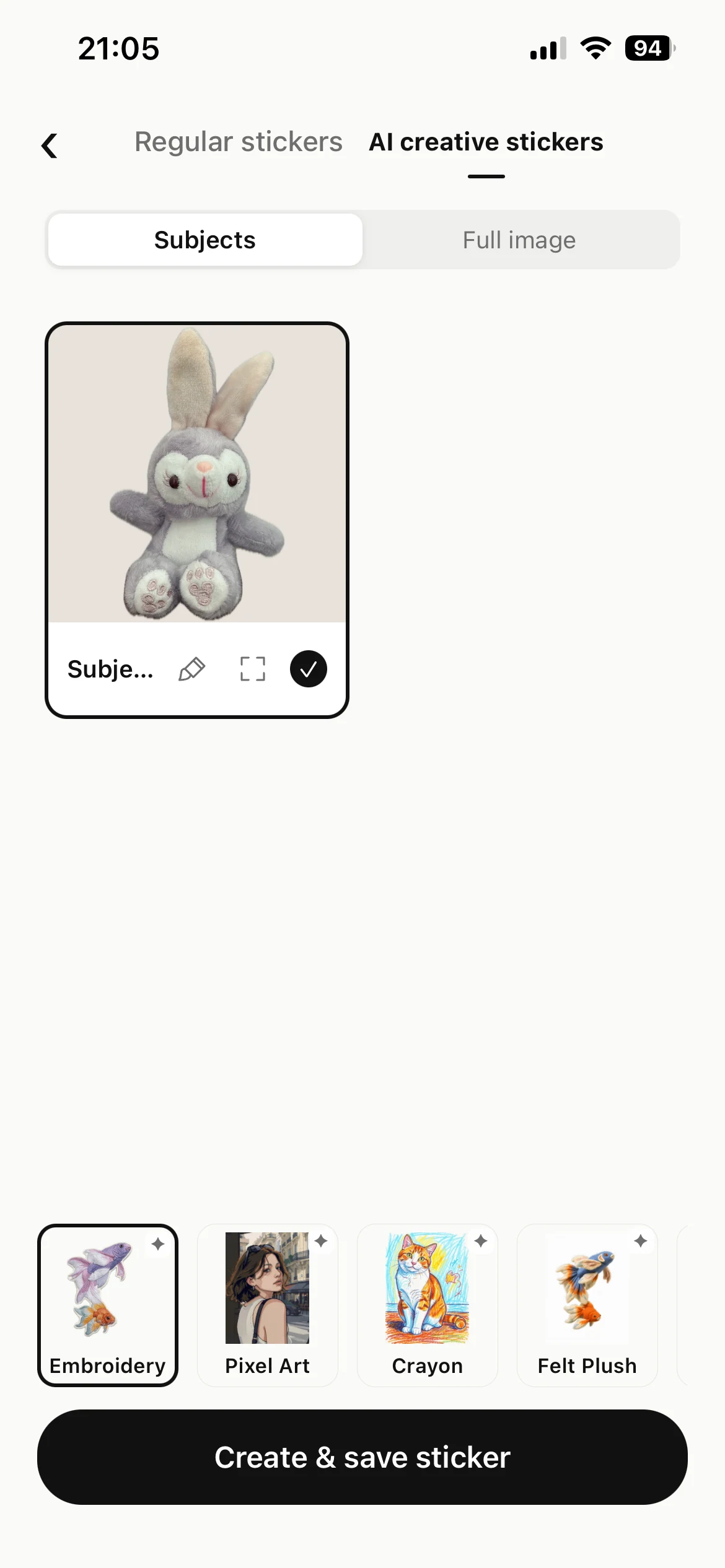
Switch to AI creative stickers. Choose Subjects to work with a detected subject, or Full image to use the image as a whole. Select the style you want to try.
2. Review the generation details
Tap Create & save sticker to review the generation information. Check the selected style, required credits, balance and processing details before you continue. The quote shown in the app applies to that request; other styles and options may have different costs.
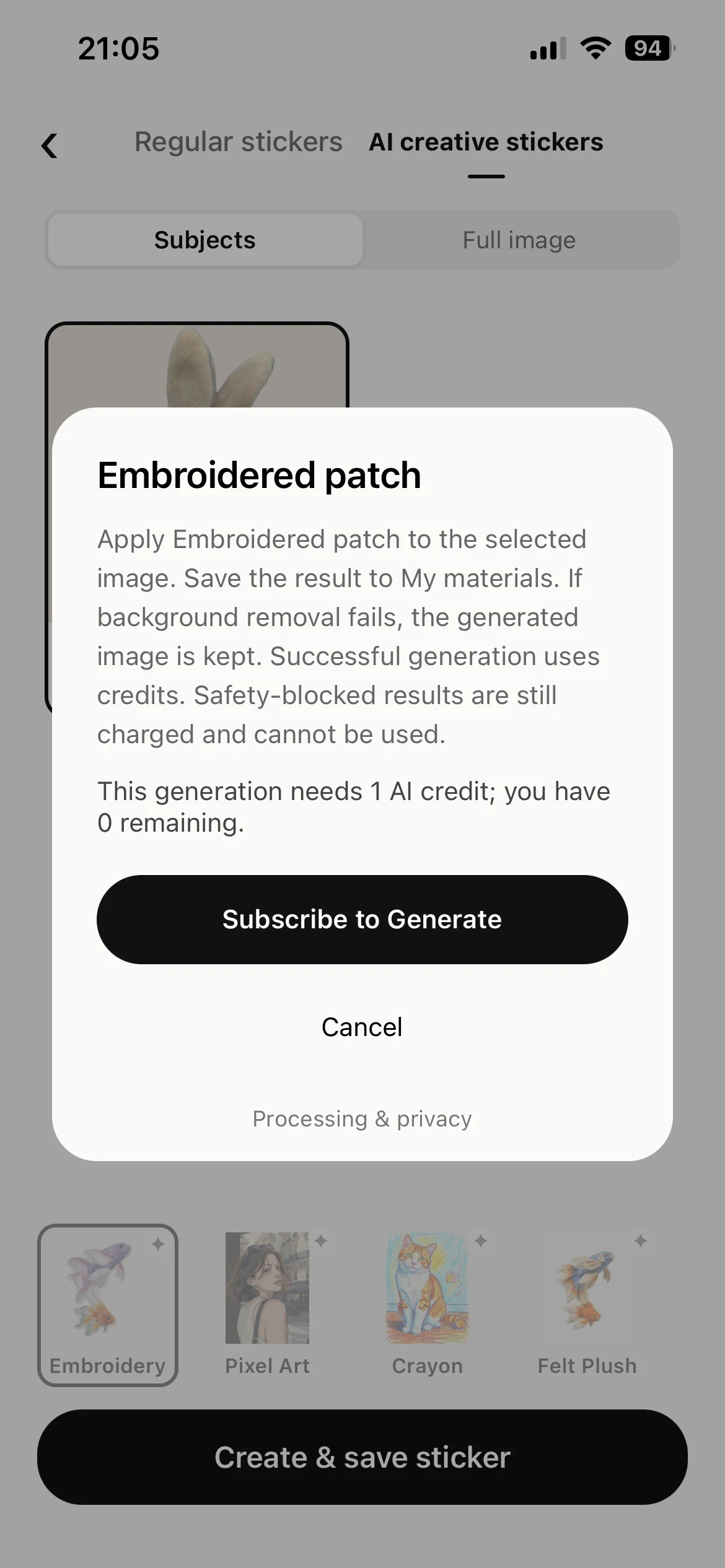
If you do not have enough credits, you cannot proceed until an eligible credit balance is available. If you continue with sufficient credits, let the request finish. Generation can change the source image; results are not guaranteed to reproduce a particular appearance.
Find and reuse your materials
Once a result has been successfully saved, open Assets and your personal material collection. The My material screen below shows saved image elements that can be used again.
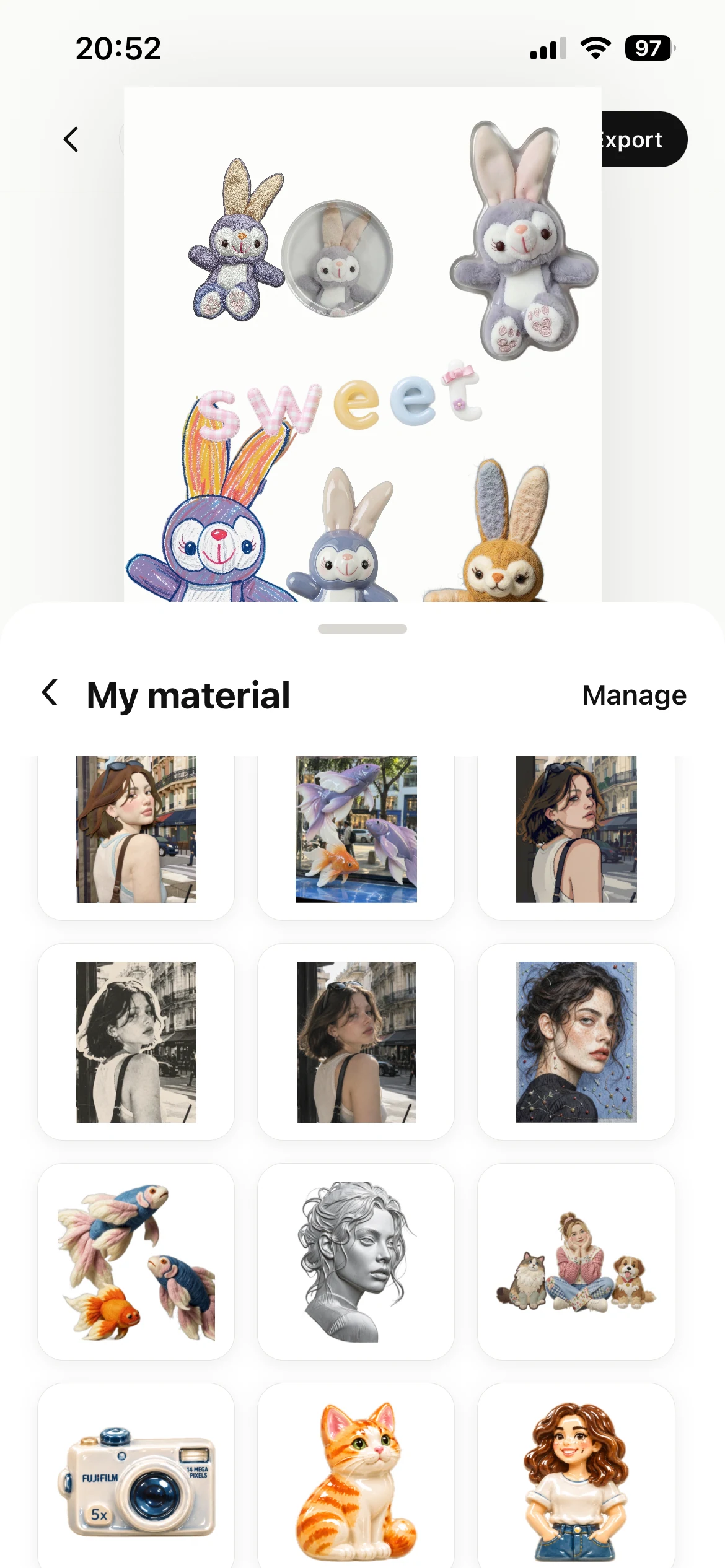
Add a saved item to a canvas and arrange it with photos, lettering or other materials. The composition below shows one way to combine a source photo with several styled rabbit elements.
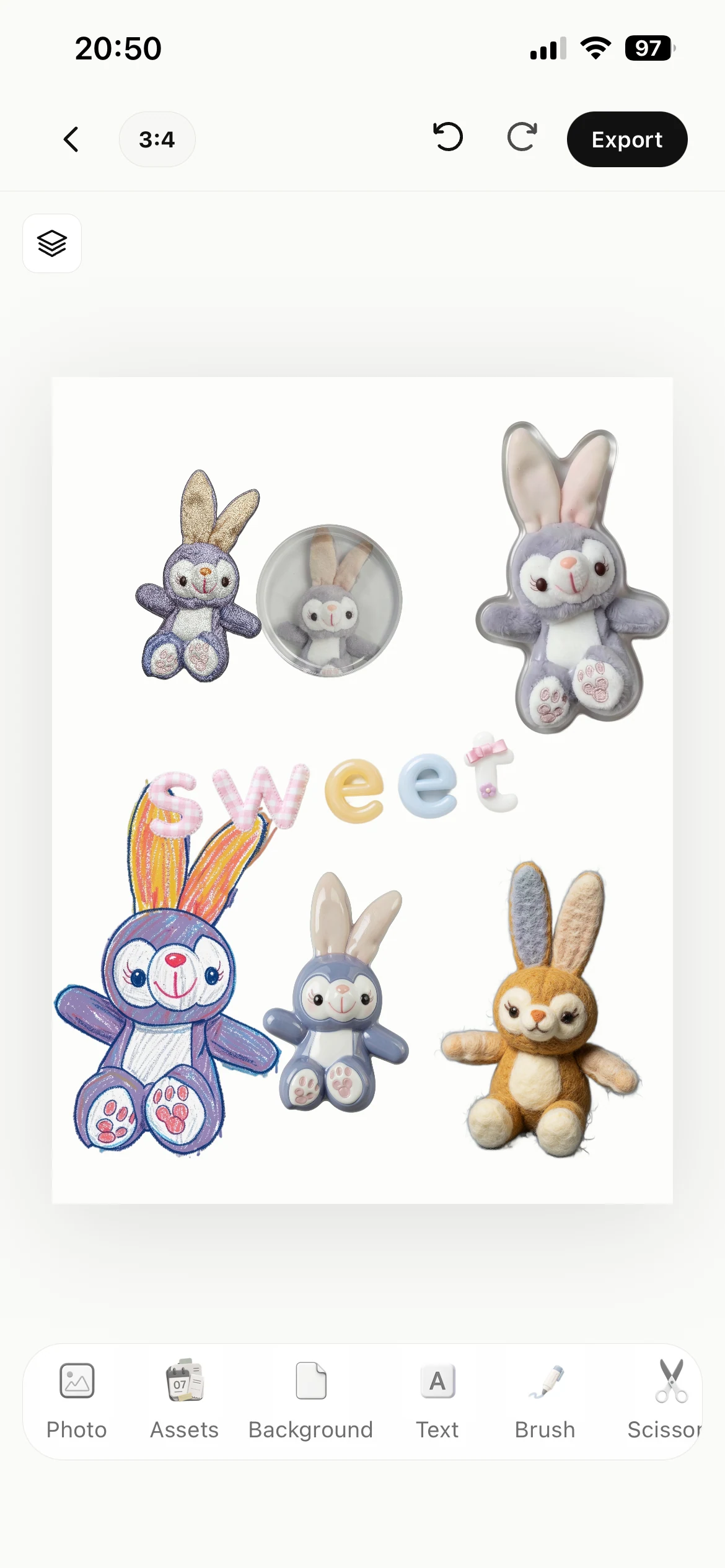
Reusing a locally saved result does not start a new generation or spend new AI credits. Saved personal materials remain reusable after a subscription expires while their local files are available. Editable projects and personal materials are stored on your device; project cloud backup and cross-device syncing are not currently supported.