
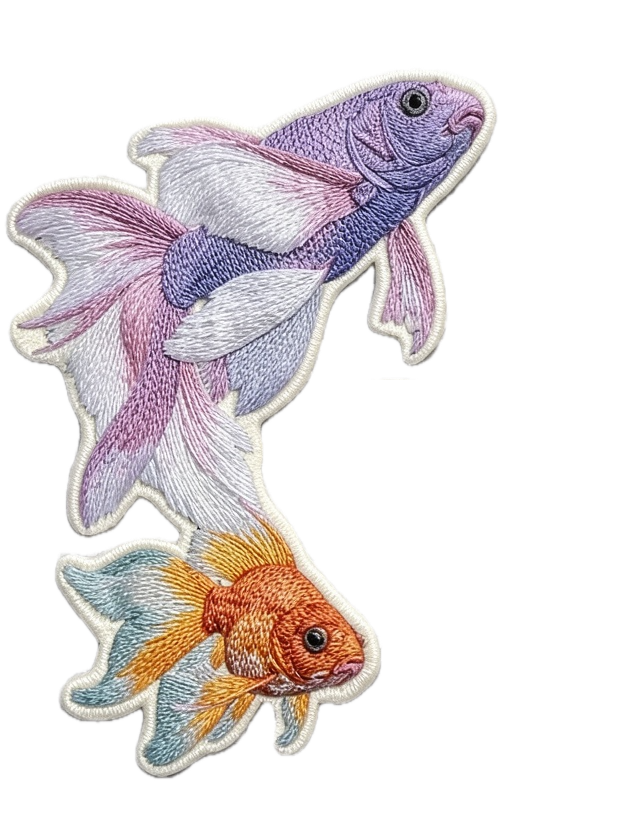
Embroidery gives an image a stitched, fabric-inspired appearance. Use a photo as a starting point and explore how a subject or full image can become a decorative element for a scrapbook or collage. AI results vary and may change details in the source.
Before you start
Cloud AI is available only to people aged 18 or older, requires an internet connection and AI credits, and requires an adult declaration and consent to cloud processing before the first generation. Choose a photo you have permission to use.
Free includes 3 introductory AI credits in total, without a monthly reset. Premium includes 30 credits per UTC calendar month, with no rollover; it does not provide unlimited AI generation. The cost depends on the feature and options and is shown before you generate.
1. Choose a photo and the Embroidery style
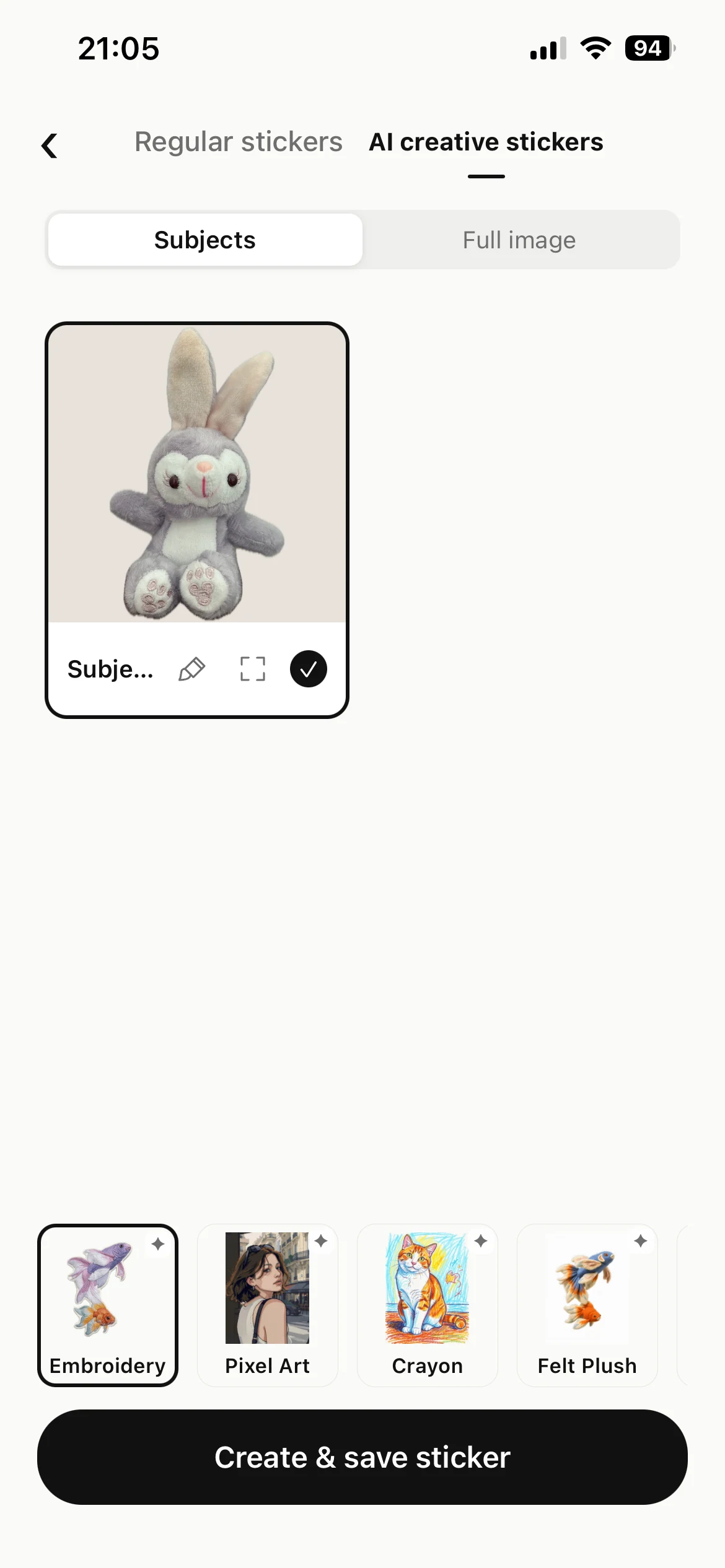
Open the sticker-making tool, switch to AI creative stickers and choose a photo. Select Subjects for a detected subject or Full image to use the image as a whole, then choose Embroidery.
Subject recognition depends on the photo and a supported real device running iOS 17 or later. Try a different photo or the full-image option if a subject is not recognized as expected.
2. Review the generation details
Tap Create & save sticker to review the request. Check the selected style, credit cost, available balance and processing details. The amount shown applies to that request; other options can cost a different number of credits.
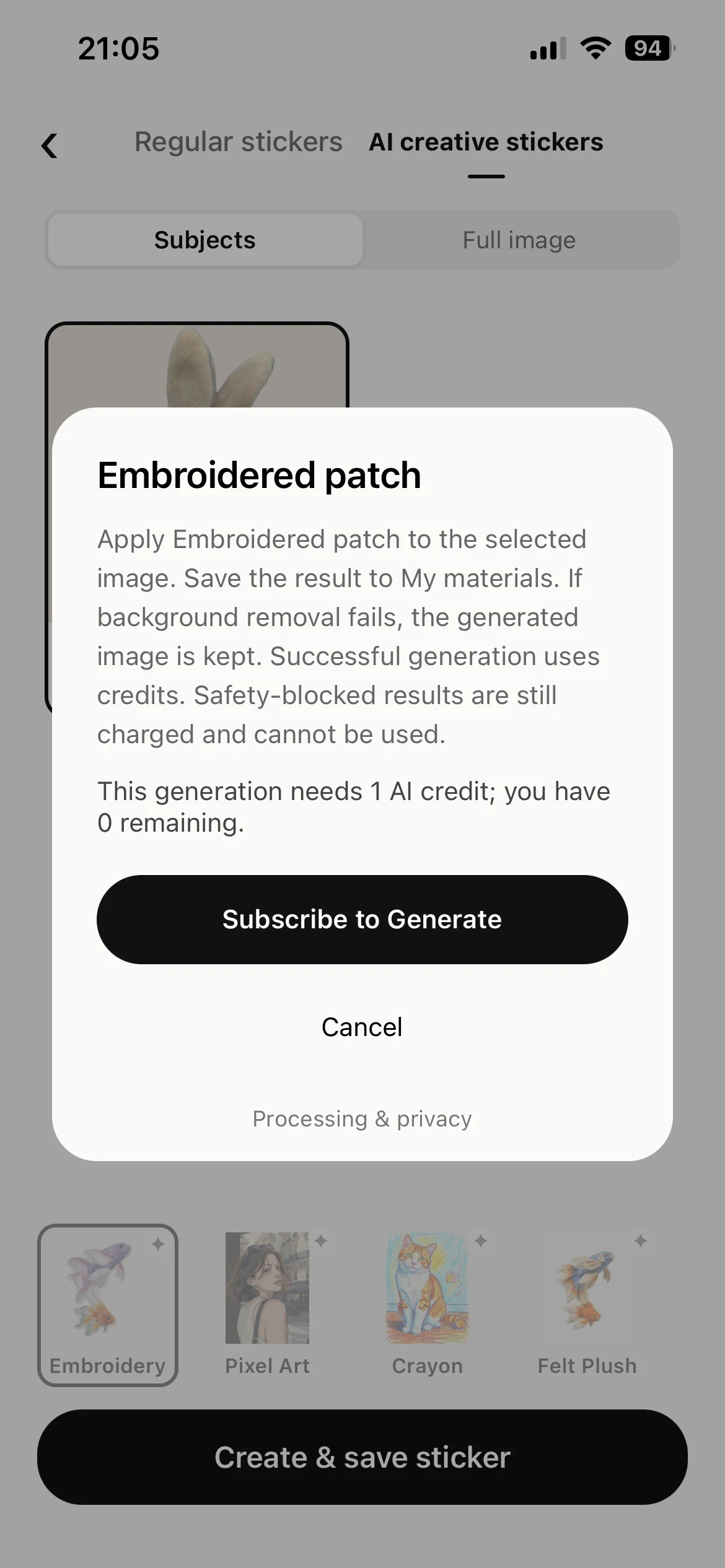
Proceed only if an eligible credit balance is available. Successful server generation uses credits, including results blocked by safety checks that cannot be delivered. Definite generation failures do not charge. A new generation uses credits again; reusing the same saved result does not.
3. Save and reuse your result
After a successful result has been saved, find it in Assets and your personal material collection. Add it to a canvas with photos, paper or lettering; the moodboard guide offers ideas for arranging a composition.
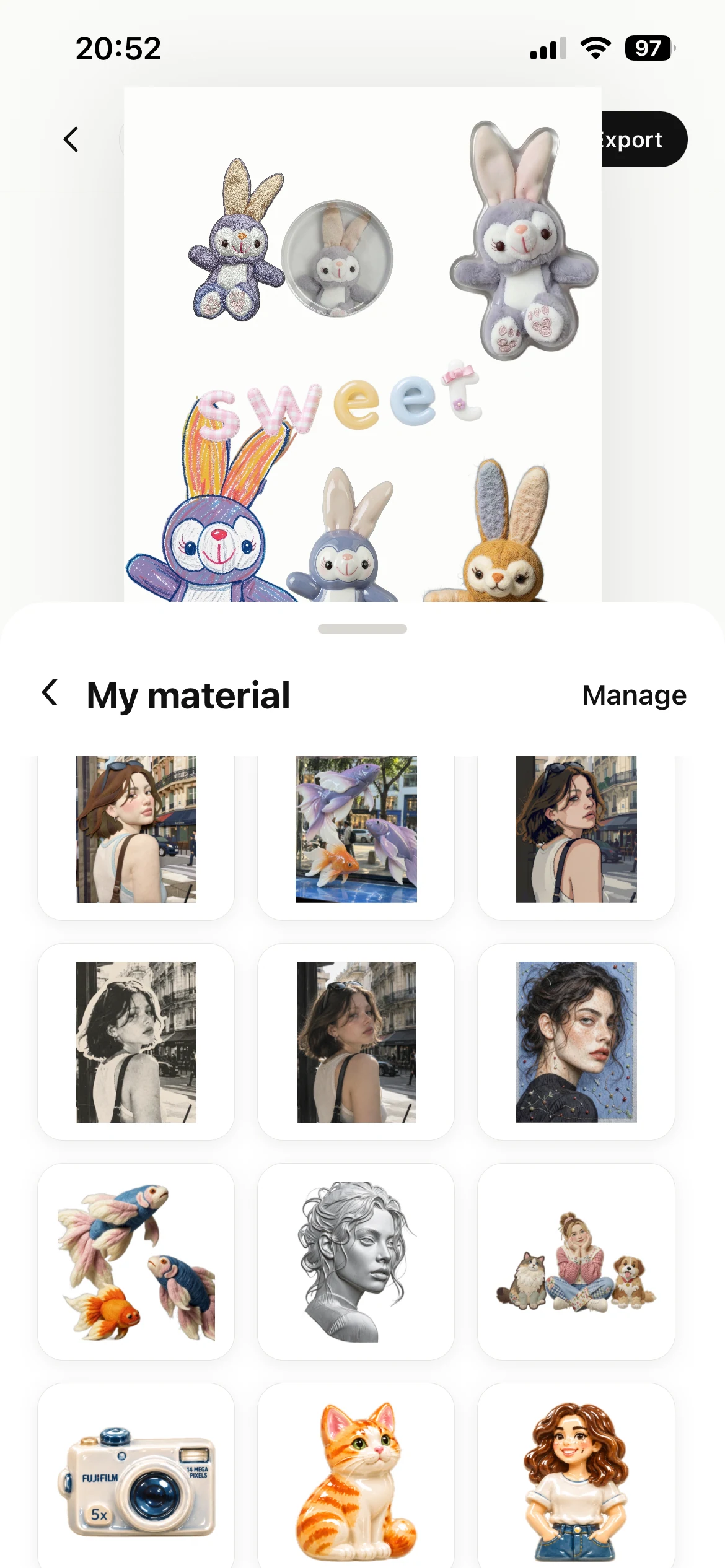
Saved personal materials remain reusable after a subscription ends while their local files are available. Editable projects and personal materials are stored locally; cloud backup and cross-device syncing are not currently supported.