A moodboard brings images, colors, words and textures together to explore a feeling or direction. Make one for a trip, a creative project or simply a mood you want to capture.
1. Choose a direction
Pick a purpose and a few words that describe the feeling you want. A travel idea might begin with “sunny,” “playful” and “slow”; a quiet personal moodboard might start with “soft,” “warm” and “familiar.” Choose a few colors that support that direction.
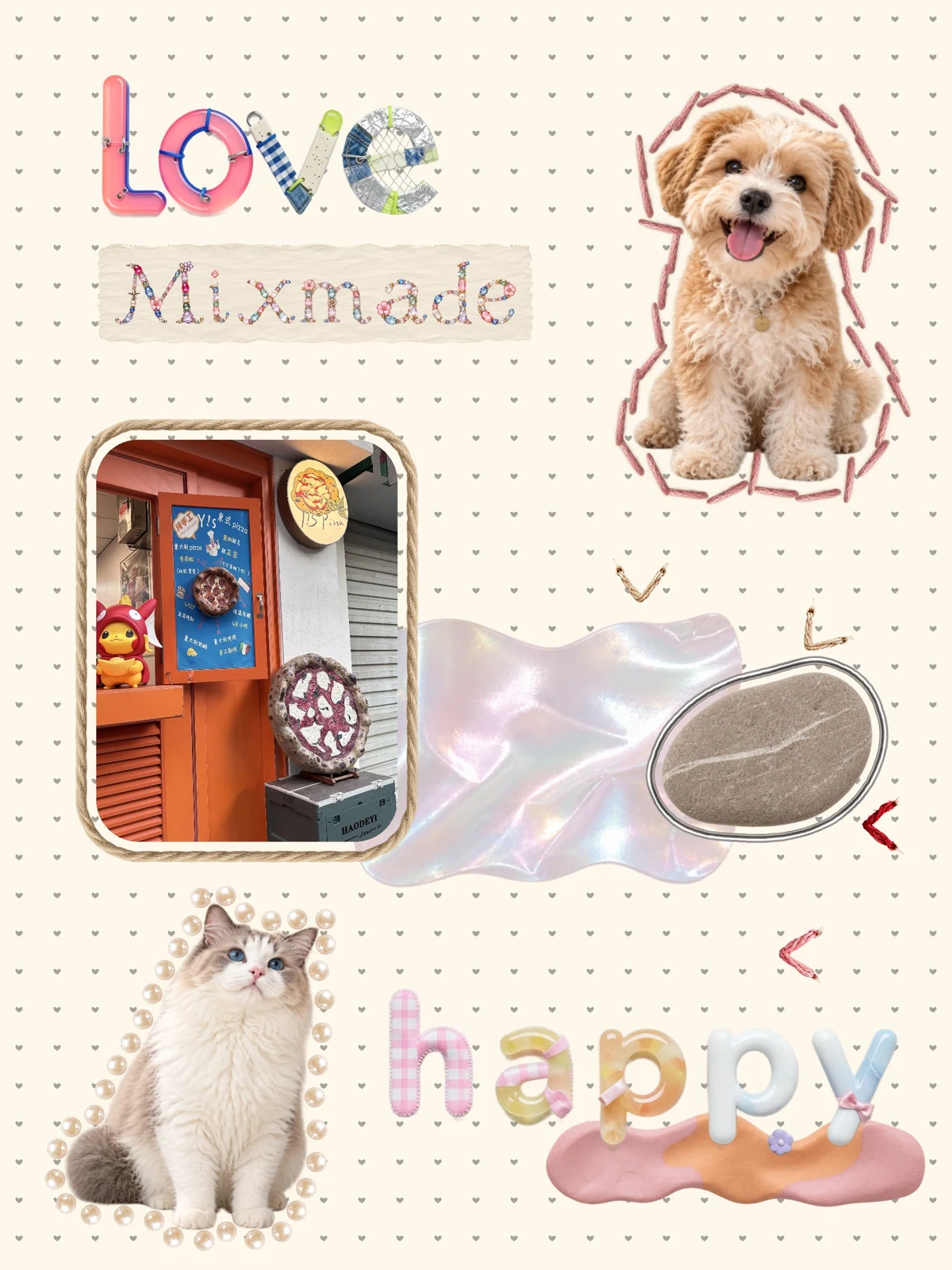
The example above mixes photographs, playful lettering, pets and tactile details. Treat it as one possible direction; your moodboard can use a different subject and palette.
2. Gather photos and details
Select a few related images from your photo library. Look for a mix of close details and wider scenes, then choose one image as a visual focus. Add a short phrase or place name if words help express the idea.
3. Start with a photo, template or blank canvas
Open MixMade and start from a photo, a template or a blank canvas. A template can offer a starting arrangement; replace its photos and adjust its details to suit your idea. To explore that route, see how to start with a template.
4. Arrange images, textures and words
Add and resize your images, then experiment with overlap and layer order. Open Assets to browse paper, frames, stickers and other materials. Use a small selection of textures and leave some space around your focal image so the elements can breathe.
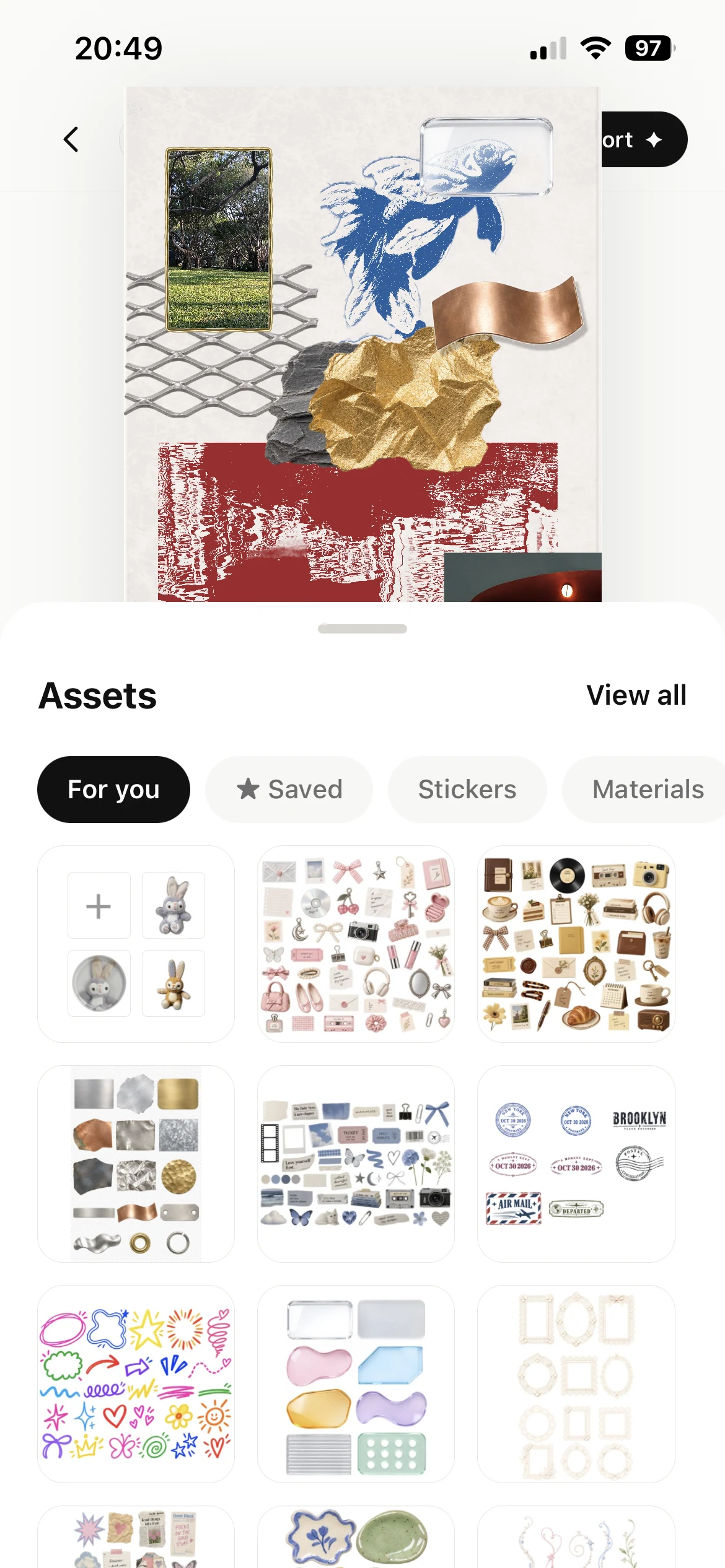
Add lettering or a decorative brush stroke if it helps the composition. You can also create personal photo stickers. For more on combining materials, see the textured collage guide.
5. Export your moodboard
Review the balance, remove details you no longer need and export your finished moodboard as an image to save or share. Standard watermark-free export is available for free. Designs containing Premium content generally require active Premium to export; fixed Premium items bundled in an original free template can be exported with that template. Separately added or copied Premium items require a subscription.
Editable projects and personal materials are stored locally on your device. Cloud backup and cross-device syncing are not currently supported; an exported image is not a backup of the editable project.