
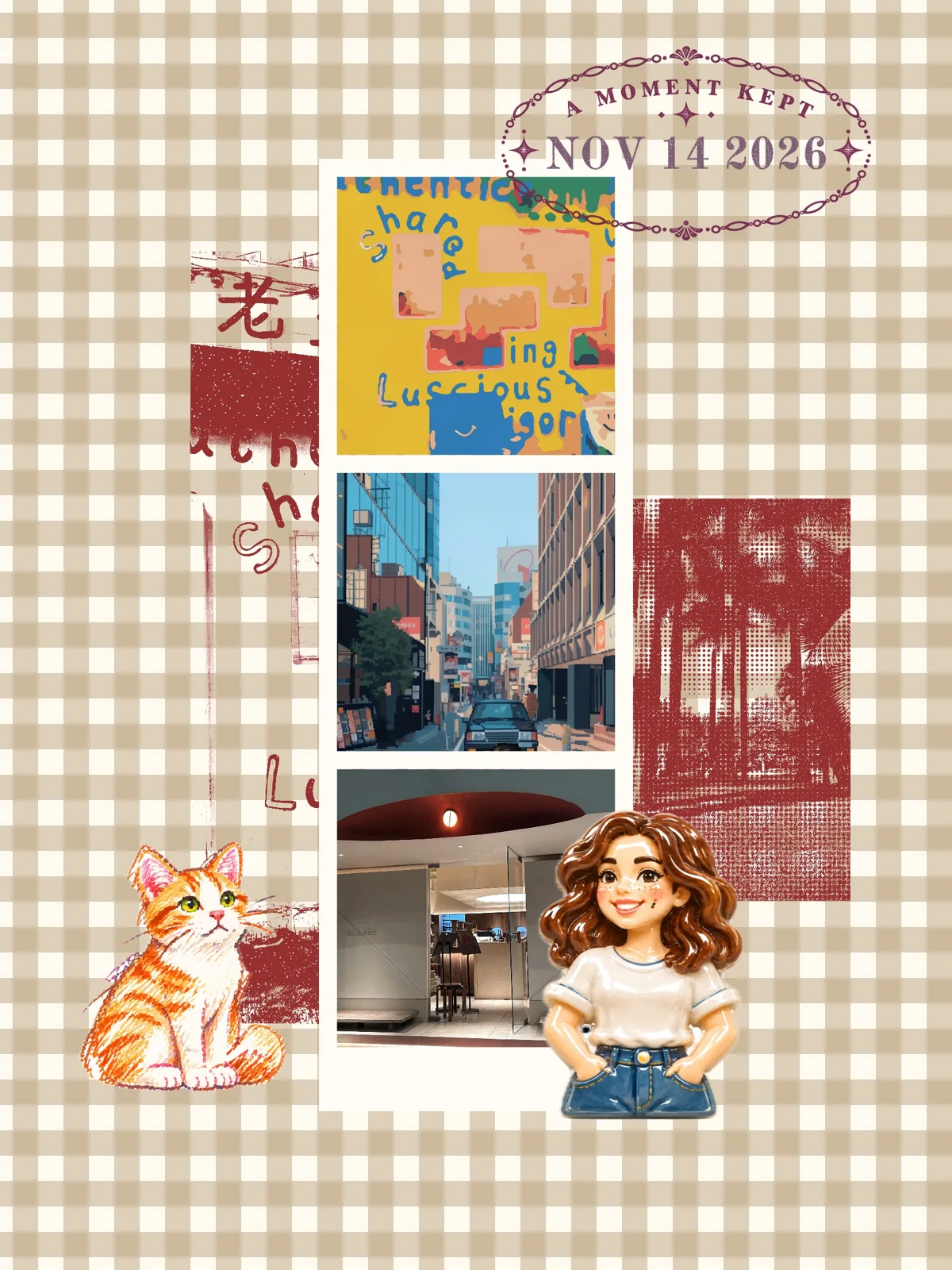
Digital scrapbooking combines photos, words and decorative elements on a digital canvas. A page can hold a trip, an ordinary afternoon or a feeling you want to remember. For a visual collection centered on a feeling or creative direction, explore how to make a moodboard on iPhone. You do not need to plan every detail before you begin.
1. Pick a story and a few photos
Begin with one moment rather than an entire album: a walk, a celebration or a favorite place. Pick a few related photos and decide which one should be the focus. A short date, place name or sentence can add context.
In the example above, a gingham background, travel photos and small decorative details suggest a memory of a day out. Your page can use different photos and tell a different story.
2. Choose a starting point
Start with a blank canvas if you want to arrange everything yourself, or pick a template and replace its photos and details. For a closer look at the template route, see make a scrapbook page from a template.
3. Build your page in layers
Add a photo, then try a paper texture, frame or piece of tape around it. Open Assets to browse materials, and adjust size, position and layer order on the canvas. Leave some open space so your main photo can stand out.
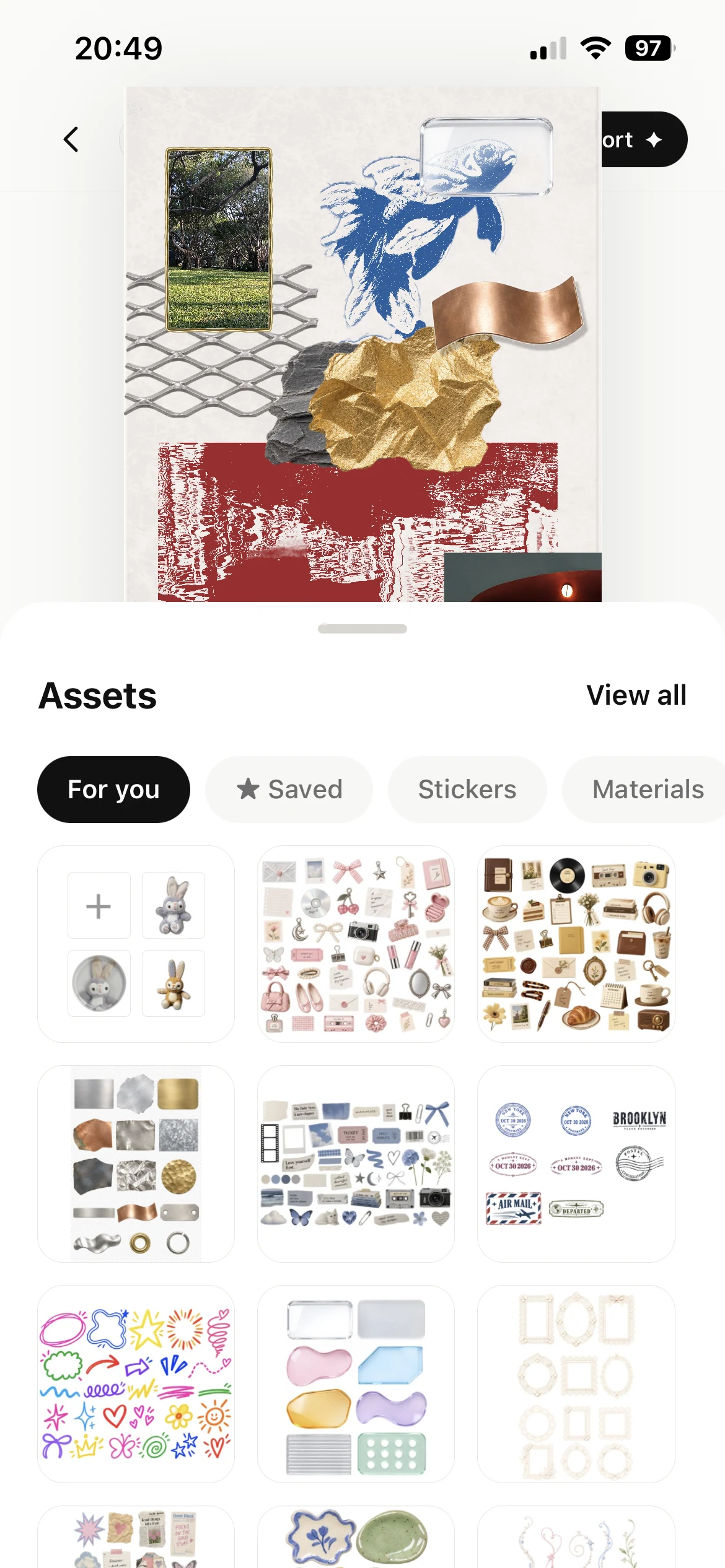
For more ideas on combining paper, metal and frames, follow the textured photo collage guide.
4. Add words and personal details
Add a title or short note, then try a sticker, brush stroke or decorative edge. Keep details that support your story and remove anything that makes the page feel crowded. You can also turn your own photo into a personal sticker or explore photo stamps.
Some materials and tools are Premium. Photo-stamp previews are free, while saving a stamp to My Stamps requires active Premium. Cloud AI is optional; it requires internet access and credits and is available only to users aged 18 or older.
5. Export and keep your work
Export the finished page as an image to save or share. Standard watermark-free export is available for free. Designs containing Premium content generally require active Premium to export; fixed Premium items bundled in an original free template can be exported with that template. Separately added or copied Premium items require a subscription.
Editable projects and personal materials are stored locally on your device; cloud backup and cross-device syncing are not currently supported. An exported image preserves the finished picture, not the editable project.
Looking for a seasonal project? Explore Christmas scrapbook ideas for iPhone.